
Migrating data from one platform to another can feel overwhelming, especially when moving from a specialized tool like Part-DB to WooCommerce. However, with careful planning, a solid grasp of SQL, and the right tools, the process is straightforward. My recent experience migrating my inventory taught me that what might seem complex at first is entirely achievable with the right approach.
Part-DB is excellent for internal inventory management but lacks the tools to make your data publicly accessible. WooCommerce, on the other hand, is a robust e-commerce platform designed to display products online, manage stock, and facilitate sales. By moving my inventory to WooCommerce, I was able to make my data accessible on my website, CollierComputers.com. Here’s how I accomplished the migration.
Why Migrate from Part-DB to WooCommerce
While Part-DB excels at organizing inventory for internal use, it doesn’t offer a public-facing interface. As my website, CollierComputers.com, began to take shape, it became clear that WooCommerce was a better choice for showcasing my inventory to the world. Its flexibility, ease of use, and e-commerce features made it the obvious next step.
The migration wasn’t just about moving data; it was about making my inventory available to visitors, giving them a way to explore and engage with the collection I’ve been building over the years.
Preparing for the Migration
To start the process, I had to bring my Part-DB server back online. After months of being powered down, it needed a little attention. Once it was running, I transferred the SQLite database containing all my inventory data to my local machine.
With the database file in hand, I installed DB Browser for SQLite. This tool provided an easy way to analyze the database and identify the fields I needed for WooCommerce. This preparation stage was essential to ensure the migration would go smoothly.
Mapping Data for WooCommerce
To successfully migrate the data, I needed to understand WooCommerce’s product structure. I began by exporting two products I had already added to WooCommerce to study the required fields. These exports served as a template, helping me identify critical fields like product name, price, and stock quantity.
Using the exported data as a guide, I mapped the fields in Part-DB to those required by WooCommerce. This step was crucial to ensure the imported data would display correctly on my site.
Writing the SQL Query
The next step was creating an SQL query to extract the data from the Part-DB database. Since Part-DB’s structure didn’t directly align with WooCommerce’s import format, this required some trial and error. My focus was on pulling key information like product names, prices, and stock quantities while ensuring consistency across all 176 products.
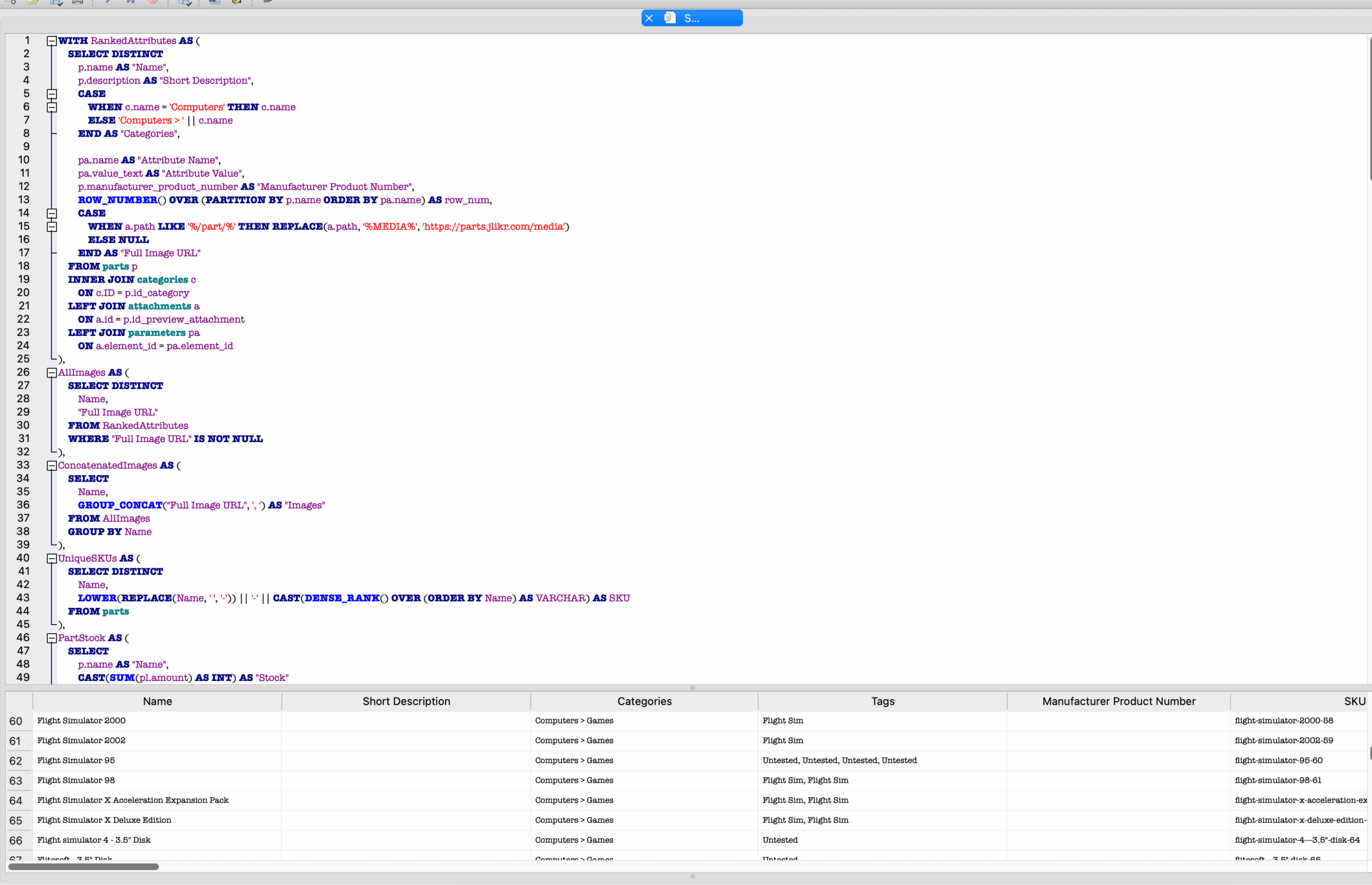
Crafting the query was time-intensive but rewarding. By the end, I had a properly formatted dataset ready for import into WooCommerce. See the code block below for an example of the SQL code I used for my needs:
WITH RankedAttributes AS ( SELECT DISTINCT p.name AS "Name", p.description AS "Short Description", CASE WHEN c.name = 'Computers' THEN c.name ELSE 'Computers > ' || c.name END AS "Categories", pa.name AS "Attribute Name", pa.value_text AS "Attribute Value", p.manufacturer_product_number AS "Manufacturer Product Number", ROW_NUMBER() OVER (PARTITION BY p.name ORDER BY pa.name) AS row_num, CASE WHEN a.path LIKE '%/part/%' THEN REPLACE(a.path, '%MEDIA%', 'https://example.com/media') ELSE NULL END AS "Full Image URL" FROM parts p INNER JOIN categories c ON c.ID = p.id_category LEFT JOIN attachments a ON a.id = p.id_preview_attachment LEFT JOIN parameters pa ON a.element_id = pa.element_id
),
AllImages AS ( SELECT DISTINCT Name, "Full Image URL" FROM RankedAttributes WHERE "Full Image URL" IS NOT NULL
),
ConcatenatedImages AS ( SELECT Name, GROUP_CONCAT("Full Image URL", ', ') AS "Images" FROM AllImages GROUP BY Name
),
UniqueSKUs AS ( SELECT DISTINCT Name, LOWER(REPLACE(Name, ' ', '-')) || '-' || CAST(DENSE_RANK() OVER (ORDER BY Name) AS VARCHAR) AS SKU FROM parts
),
PartStock AS ( SELECT p.name AS "Name", CAST(SUM(pl.amount) AS INT) AS "Stock" FROM parts p LEFT JOIN part_lots pl ON p.id = pl.id_part GROUP BY p.name
),
PurchaseNotes AS ( SELECT p.name AS "Name", GROUP_CONCAT( CASE WHEN pd.price IS NOT NULL THEN 'Purchase Price: $' || CAST(pd.price AS TEXT) || COALESCE(', Supplier Part Number: ' || od.supplierpartnr, '') || COALESCE(', Supplier URL: ' || od.supplier_product_url, '') ELSE NULL END, '; ' ) AS "Purchase Note" FROM parts p LEFT JOIN pricedetails pd ON p.id = pd.orderdetails_id LEFT JOIN orderdetails od ON p.id = od.part_id GROUP BY p.name
)
SELECT DISTINCT ra.Name, ra."Short Description", ra.Categories, GROUP_CONCAT(ra.Tags, ', ') AS "Tags", ra."Manufacturer Product Number", us.SKU, ci."Images", ps."Stock", pn."Purchase Note", MAX(CASE WHEN row_num = 1 THEN "Attribute Name" END) AS "Attribute 1 name", MAX(CASE WHEN row_num = 1 THEN "Attribute Value" END) AS "Attribute 1 value(s)", MAX(CASE WHEN row_num = 1 THEN 1 ELSE NULL END) AS "Attribute 1 visible", MAX(CASE WHEN row_num = 1 THEN 0 ELSE NULL END) AS "Attribute 1 global" -- Add additional attributes as needed
FROM RankedAttributes ra
LEFT JOIN ConcatenatedImages ci ON ra.Name = ci.Name
LEFT JOIN UniqueSKUs us ON ra.Name = us.Name
LEFT JOIN PartStock ps ON ra.Name = ps.Name
LEFT JOIN PurchaseNotes pn ON ra.Name = pn.Name
GROUP BY ra.Name, ra."Short Description", ra.Categories, ra."Manufacturer Product Number", us.SKU, ci."Images", ps."Stock", pn."Purchase Note";
Importing Data to WooCommerce
With the data prepared, I used WooCommerce’s built-in import tool to upload the products. This step was surprisingly smooth, though the upload process took longer than expected due to the number of products being imported. Watching the progress bar move slowly was a test of patience, but it was worth it when I saw the products appear on CollierComputers.com.
After the upload, I spent time verifying the data on the site. Ensuring the accuracy of each product listing was a meticulous but necessary step to ensure the migration’s success.
Lessons Learned
This migration reaffirmed the importance of planning, preparation, and understanding the tools at hand. Breaking the process into manageable steps made it much easier to navigate. SQL knowledge was indispensable for extracting and preparing the data efficiently.
By moving to WooCommerce, I not only improved the way I manage inventory but also made my collection accessible to visitors. The ability to display my inventory online opens new possibilities for sharing and engaging with my audience.
Final Thoughts
Migrating from Part-DB to WooCommerce was a game-changer for my workflow and my website. The process required effort and patience, but the result—a fully accessible, public-facing inventory—is well worth it. For anyone considering a similar migration, I encourage you to take the leap. With the right preparation and tools, it’s entirely within reach.